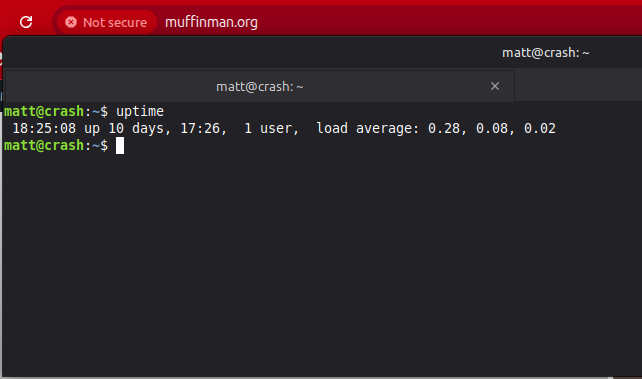
You can create a colored Bash prompt by modifying the PS1 environment variable in your ~/.bashrc file. The color is set using ANSI escape sequences.
🛠️ Steps to Color Your Prompt
1. Edit the ~/.bashrc File
Open your Bash configuration file, ~/.bashrc, using a text editor like nano or vim:
Bash
nano ~/.bashrc
2. Add or Modify the PS1 Variable
The $PS1 variable defines your shell prompt. You’ll insert special escape sequences for color and styling.
A Simple Example
Add a line like this to the end of your ~/.bashrc file, or find and replace your existing PS1 definition:
Bash
export PS1='\\[\e[1;32m\\]\u@\h:\\[\e[1;34m\\]\w\\[\e[0m\\]\$ '
Here’s what this example does:
\\[\e[1;32m\\]: Starts bold (1;) and green (32m) text. The\\[and\\]are important to tell Bash that the escape sequence doesn’t take up any physical space, which prevents line wrap issues.\u@\h:: Prints the username (\u) and hostname (\h) in green.\\[\e[1;34m\\]: Switches to bold (1;) and blue (34m) text.\w: Prints the current working directory (full path) in blue. Use\Wfor the basename (last part) of the directory.\\[\e[0m\\]: Resets all text attributes (color, bold, etc.) back to the default terminal color. This is crucial so your command input isn’t colored.\$: Prints the prompt symbol ($for regular users,#for root) followed by a space.
Color and Format Codes
The format for an ANSI color escape sequence is \e[<FORMAT>;<COLOR>m.
| Code | Style | Code | Foreground Color | |
| 0 | Reset/Normal | 30 | Black | |
| 1 | Bold/Bright | 31 | Red | |
| 2 | Dim | 32 | Green | |
| 4 | Underline | 33 | Yellow | |
| 5 | Blink (Avoid!) | 34 | Blue | |
| 7 | Reverse | 35 | Magenta | |
| 36 | Cyan | |||
| 37 | White/Light Gray |
- Bright Colors: To get brighter versions of the colors (like Bright Red or Light Green), use the Bold code (
1;) before the color code, as in1;31mfor Bold Red.
3. Save and Apply Changes
- Save the file and exit the editor (e.g., in
nano, press $\text{Ctrl}+\text{O}$ then $\text{Enter}$, then $\text{Ctrl}+\text{X}$). - Apply the changes to your current shell session by running:
Bash
source ~/.bashrc
Your prompt should change immediately! The new prompt will also be active in any new terminal window you open.
✨ Prompt Elements (Escape Sequences)
These are some common codes you can use in your $PS1 to display information:
| Code | Description | Example |
\u | Username | john |
\h | Hostname (short) | my-server |
\W | Basename of CWD | Desktop |
\w | Full CWD path | ~/Documents/project |
\t | Current time (HH:MM:SS) | 13:23:15 |
\@ | Current time (AM/PM) | 01:23 PM |
\d | Current date | Mon Dec 1 |
\$ | Prompt character (# for root, $ otherwise) | $ |